How to Share Instagram Post to Story: A Practical Guide
Master how to share instagram post to story with quick, practical steps to boost reach and engagement.
Sharing an Instagram post to your Story is a fundamental skill for growing your presence. The process is simple: find the paper airplane icon below any public feed post, tap it, and select "Add post to your story." This action transforms the post into a clickable sticker within your Story, creating a seamless bridge that guides viewers directly to your original content.
Why Sharing Posts to Stories Is an Engagement Goldmine

Sharing a feed post to your Story isn’t just a repost; it’s a strategic move to boost visibility. Think of it as a second chance for your content to capture attention. It effectively re-surfaces your post for followers who might have missed it in their feed, instantly amplifying its reach and reviving its engagement potential.
This tactic is powerful because it capitalizes on the high-engagement environment of Stories. With an audience of around 500 million daily users, Stories are the ideal venue to connect with your most dedicated followers and redirect them to your core content.
Drive Traffic and Re-engage Your Audience
Let's look at some actionable examples of how this works in practice:
E-commerce Brand: A clothing boutique posts a new dress to its feed. To drive immediate interest, they share that post to their Story, adding a "Tap to Shop!" sticker and a countdown timer for a 24-hour launch discount. This creates urgency and provides a direct path for followers to see the new product.
Fitness Coach: A coach shares a client's impressive transformation photo in a feed post. Later, they share that post to their Story with text that says, "Want results like this? Tap here to see how!" This leverages social proof to drive traffic back to the more detailed post.
The core strategy is to convert passive Story viewers into active feed participants. You are creating a direct funnel from a fleeting Story to a permanent post, encouraging more likes, comments, saves, and profile visits.
This strategy is highly effective due to Instagram's massive user base of 2.0 billion active monthly users. When you share a post, it becomes that crucial tappable sticker that bridges the gap between your Story and your feed, making it incredibly simple for viewers to engage deeper.
Maximize Your Story's Impact
Of course, sharing the post is only the first step. To make this strategy effective, you need to ensure your Stories are getting views in the first place.
Driving more views to your Stories is essential for this tactic to succeed. For actionable advice on that, check out this guide on how to get more views on Instagram Story. This will help guarantee that your sharing efforts reach the widest possible audience.
The Simple Mechanics of Sharing a Post to Your Story

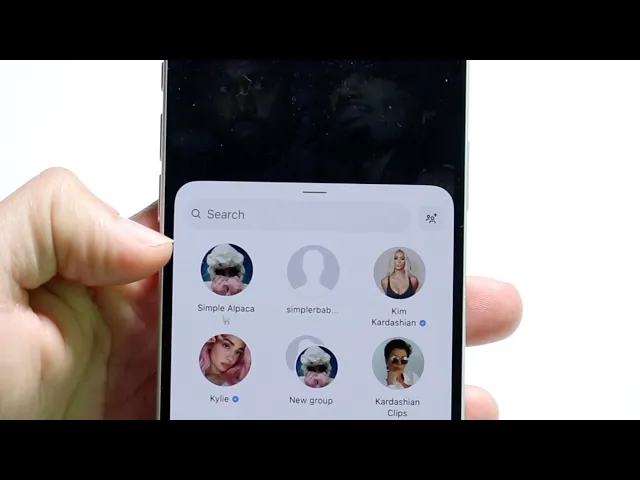
It all begins with the paper airplane icon located under every post. Tapping this icon opens a share menu, allowing you to send the post directly into your Story editor with one tap.
For example, imagine you’re a food blogger who just published a new recipe on your feed. To give it an extra push, you tap the paper airplane icon under your own post, select "Add to story," and Instagram instantly generates a Story draft with your recipe post as a movable sticker.
From there, you enter the Story editor, where you can customize the share:
Find the share icon (paper airplane) below the post you want to share.
Tap "Add post to your story" to open the editor.
Begin customizing the post's size, placement, and background.
Once your draft is ready, you’ll see the familiar editing tools at the top. This is your canvas to add text, stickers, or music before publishing.
Resizing and Rotating Your Post Sticker
Adjusting the post sticker is intuitive. Use a pinching motion to shrink or enlarge it, and drag it with one finger to position it anywhere on the screen.
To add a dynamic touch, place two fingers on the sticker and twist to rotate it. This is a great way to angle the post to make room for other creative elements like text or GIFs.
Pinch to resize the post, making it either a subtle element or the main focus.
Slide it to align with text, polls, or other stickers.
Twist to tilt it, giving your Story a more visually interesting and less static feel.
Once you set the size and angle, it remains fixed, allowing you to layer other elements without accidentally moving the shared post.
Switching Up the Background
By default, Instagram applies a blurred, color-coordinated background based on the original post. While this looks clean, you can change it. A single tap on the post sticker toggles between this default gradient and a solid color background.
Tapping the sticker once reveals the solid color background, creating a more minimalist look that makes the shared content stand out.
Actionable Tip: Test both background styles. For a busy photo, a solid background can reduce clutter. For a simple image, the default gradient can add visual depth. The right choice depends on the mood you want to create.
Putting It All Together
So, what does a fully customized share look like in action? A local bookstore could share a photo of a new book arrival. They might shrink the post sticker, move it to the side, tap for a solid background, and then use the drawing tool to add an arrow pointing to it with the text, "Just in! Tap to see our new fantasy arrivals."
Here is the step-by-step process:
Tap the paper airplane icon under a post.
Select "Add post to your story."
Pinch, slide, or twist the post sticker to your desired position.
Tap the sticker to change the background style.
Add your own creative elements like text, GIFs, or polls.
Hit "Your Story" to publish it.
With these steps, you now know how to share an Instagram post to your Story and customize it to match your brand's aesthetic.
Transform Your Share from Basic to Unforgettable

Knowing the mechanics of how to share an Instagram post to your Story is just the start. The real magic lies in transforming that simple share into a compelling call to action that stops viewers from tapping past.
Don't just share the post—frame it with context and personality. Your goal is to turn a passive view into an active click that drives traffic to your feed.
Build Curiosity to Drive Clicks
One of the most effective strategies is to create a "curiosity gap." By strategically hiding part of the original post, you entice viewers to tap through to see the full content.
Here are some practical ways to do this:
The Sticker Cover-Up: Find a relevant sticker (like "New Post" or a question sticker) and place it directly over the most interesting part of your image. For example, a travel blogger could cover a landmark with a "Guess Where?" sticker.
The Teaser Text: Place a large text box over the post that asks a compelling question related to the content. A chef sharing a recipe post could write, "The secret ingredient is... (tap to find out!)."
The Zoom-In Reveal: Pinch to zoom in on a small, intriguing detail of the original photo. Then add text like, "See the full picture," prompting a tap.
You are essentially gamifying the share, making it an interactive experience rather than a static announcement.
The key is to give your audience a reason to tap. A small element of mystery is incredibly effective at converting a passive Story view into an active visit to your profile and post.
Match Your Aesthetic for a Cohesive Look
Maintaining a consistent brand aesthetic, even in temporary Stories, makes your content look more professional. Instagram's tools make this easy.
A practical tool for this is the color dropper. When adding text or using the drawing tool, tap the color palette and select the dropper icon. Drag it over your shared post to sample a color directly from the image. This ensures your text and drawings perfectly match the post's color scheme, creating a polished, cohesive look.
Power Up Your Share With Creative Tools
Beyond text and colors, Instagram’s built-in features are your best tools for making a shared post engaging. Here’s a breakdown of how to use them strategically when re-sharing content.
Creative Tools for Enhancing Your Shared Story
Creative Tool | Best Use Case for Shared Posts | Actionable Insight |
|---|---|---|
Stickers | Add interactivity and context. Use the "Quiz" sticker to test knowledge or a "Poll" to ask for opinions related to the post. | Example: Share a post about two products and use a Poll sticker asking, "Which one is your favorite?" |
Mentions | Tag the original creator, a collaborator, or anyone featured in the post to give credit and trigger a notification. | Use the |
Music | Set the tone of the post. Choose a song that complements the mood of the photo or video. | Example: For a high-energy workout video post, add an upbeat, motivational track to amplify the vibe. |
Drawing Tool | Highlight specific elements, add handwritten notes, or create a custom frame around the post. | Use the color dropper to match your drawing color to a brand color from the image for a cohesive design. |
Using these tools thoughtfully elevates a simple reshare into a strategic piece of content that drives real traffic back to your feed.
Finally, remember that good content principles apply everywhere. For a deeper understanding of creating engaging visuals, check out this guide on how to create video ads that actually convert. Additionally, ensure your original post is optimized by learning how to use hashtags effectively to maximize its initial reach.
Solving Common Sharing Issues
It’s a common frustration: you find a great post, tap the paper airplane icon, but the "Add to story" option is nowhere to be found. This problem is almost always related to account privacy settings.
At its core, Instagram gives users control over how their content is shared. If you can't share a post, it's typically for one of two reasons: the account is private, or the user has disabled resharing.
Why Is the Share Button Missing?
If you're trying to share someone else's post and the option is missing, first check if the account is private (look for a lock icon next to their username). Instagram does not permit sharing feed posts from private accounts to Stories to protect user privacy.
If the account is public, the user has likely disabled resharing in their settings. This is a deliberate choice by the creator, and there is no way to override it.
When You Can't Share Your Own Post
If you can't share your own feed post to your Story, it's a sign that your sharing settings need adjustment. This is a simple fix.
Here’s the actionable solution:
Go to your profile and tap the three horizontal lines (the hamburger menu) in the top-right corner.
Tap on Settings and privacy.
Scroll down to Sharing and remixes.
Under the "Stories" section, ensure the toggle for Allow sharing post to story is turned on.
Actionable Insight: Enabling this setting is crucial for growth. It doesn't just allow you to share your posts; it empowers your followers to share them too, turning your community into brand advocates and amplifying your reach organically.
Occasionally, the issue may be a temporary glitch. If your settings are correct, try updating the Instagram app or logging out and back in. These simple steps often resolve unexpected bugs.
How to Know If Your Shared Stories Are Working
Sharing a post is simple. Measuring its effectiveness is where you'll find opportunities for real growth. The key is to connect the dots between your Story share and the performance of the original feed post.
Your first indicator is the original post's insights. After sharing it to your Story, monitor its metrics. Do you see a noticeable increase in likes, comments, saves, or reach shortly after the Story went live? This is direct feedback that your share successfully drove traffic.
The most valuable data, however, comes from your Story metrics. A tap-through from a Story is a high-intent action—it signals to the algorithm that a viewer was engaged enough to navigate away from the Story flow to see more.
Beyond Views and Likes
Look beyond simple view counts. Focus on metrics that indicate true engagement. For instance, a high completion rate on your Story suggests your content was compelling enough to hold attention.
This is more than a vanity metric. Industry research shows brand Stories can achieve completion rates as high as 88%, demonstrating the format's power to engage audiences. You can compare your performance against industry averages by checking out Instagram Story benchmarks on Socialinsider.
Actionable Insight: If you share a post to your Story and see a high tap-forward rate (people skipping to the next Story), your creative approach might be the issue. Try a different tactic next time, like using a poll or a question sticker to increase interaction before the tap-through.
Ultimately, tracking the link between a Story share and a spike in post engagement helps you understand what resonates with your audience. This data-driven approach allows you to refine your content strategy. To connect these efforts to business goals, learn how to measure social media ROI.
Got Questions About Sharing Posts? Let’s Clear Things Up
Sharing posts to Stories is generally simple, but a few questions consistently arise. Here are the answers to the most common ones.
Can I Share a Post from a Private Account?
No. Instagram’s privacy features prevent the sharing of content from private accounts.
You will not see the "Add post to your story" option on any post from a private profile, even if you follow that account. This is a hard-coded privacy setting with no workarounds.
Does This Work for All Types of Posts?
Yes, you can share almost any type of standard feed post to your Story, including:
Single photos
Carousel posts (with multiple photos or videos)
Reels
Regardless of the original format, the content will appear as a clickable sticker in your Story. Viewers can tap it to see the full post, making it an excellent tool for driving traffic to your feed.
I Can't Share My Own Post—What Gives?
This is almost always a settings issue. If the option to share your own post to your Story is missing, it means you've likely disabled resharing in your account settings.
Follow these simple steps to fix it:
Navigate to your profile and tap the menu icon.
Go to Settings and privacy > Sharing and remixes.
Find the Allow sharing post to story toggle and ensure it is switched on.
Once enabled, this setting allows both you and your followers to share your feed posts to Stories, which is a powerful way to increase the organic reach of your content.
Ready to automate your social media workflow and maximize your reach? NicheTrafficKit uses AI to handle content creation, scheduling, and publishing across all your platforms, so you can focus on growth. Start your free trial at https://nichetrafflickit.com.