How to schedule instagram stories: The Easy Guide to Consistent Posts
Learn how to schedule instagram stories using native tools and trusted apps. Quick steps to save time and boost engagement.
Let’s be honest, posting Instagram Stories on the fly feels spontaneous and authentic, but it can quickly turn into a mad dash. Before you know it, you're posting inconsistently, missing key moments, and throwing content out there that doesn't quite hit the mark with your overall strategy.
The good news? You can schedule your Stories. Whether you use the native tools in Meta Business Suite or a third-party app, planning ahead changes everything. It turns your Stories from a reactive chore into a deliberate, powerful part of your content plan.
Why Bother Scheduling Instagram Stories?
When you schedule your Stories, you’re not just saving time—you're getting strategic. Instead of just being active, you're being intentional. This allows you to weave a consistent brand story and perfectly time your content with product launches, big announcements, or just your audience's daily scroll.
It's All About Consistency
Consistency is the secret sauce for keeping your audience hooked. When your followers know they can count on you for fresh content every day, checking your Stories becomes a habit. Scheduling makes sure you show up, even when you're swamped.
This is a lifesaver for teams, too. Getting content reviewed and approved at the last minute is a recipe for stress. For example, imagine a marketing team planning a 3-day product launch. By scheduling all the teaser videos, countdowns, and announcement graphics in advance, everyone can sign off on the content beforehand. This avoids last-minute typos and ensures a smooth, predictable workflow. It’s no wonder so many teams rely on it, especially when you consider that 38% of social media managers are running the show completely on their own.
Scheduling lets you batch-create your content. Think about it: instead of the daily scramble to brainstorm, film, edit, and post, you can knock out an entire week's worth of Stories in one focused session. Now that's a time-saver.
Get More Bang for Your Buck
Scheduling also means you can post when it actually counts. Industry data shows that the average brand posts about two Stories per day, and a well-planned series can see a 70% average completion rate. This tells us that posting a thought-out sequence of Stories is far more effective than just tossing up random single slides.
For instance, a real estate agent could create a 5-part Story series for a new listing: Slide 1 is an enticing video of the exterior, Slide 2 shows the kitchen, Slide 3 is the master bedroom, Slide 4 lists key features, and Slide 5 is a call-to-action to book a viewing. By scheduling this multi-slide Story to go live when their followers are most active, they maximize views in that precious 24-hour window. Why post something amazing when half your audience is asleep? If you want to dive deeper, you can find more scheduling benchmarks and data that show just how powerful this simple shift can be.
Scheduling Stories with Meta Business Suite: Your Go-To Native Tool
When you want to start scheduling Instagram Stories, your first stop should be Meta’s own platform. The Meta Business Suite is the official, free, and most direct route for scheduling content across both Instagram and Facebook. It's my starting point for most clients because you get to skip the headaches of third-party app connections and API quirks—it’s built by Meta, for Meta platforms.
Think of it as your content command center. Instead of hopping between your phone and desktop, you can plan, build, and schedule all your Stories from one dashboard. This is a game-changer for batching content. You can upload an entire week's worth of media at once and get a bird's-eye view of your schedule in the content calendar.
Getting Around the Business Suite Dashboard
First things first, you need to make sure your Instagram account is set up as a Business or Creator account. It also needs to be connected to a corresponding Facebook Page. Once that’s handled, you're in. The interface lets you toggle between a list of your content and a visual planner, which is perfect for seeing your posting schedule at a glance.
This is the main dashboard you'll see when you log in.
Everything you need—the planner, content creation tools, and your analytics—is right there in the left-hand menu.
How to Schedule Your First Story
Once you've found your way around, scheduling a Story is pretty intuitive. Here’s a quick walkthrough of how I usually do it.
From the main dashboard or the "Planner" tab, just hit the "Create Story" button. This launches the content studio where the magic happens.
At the very top, you’ll be prompted to choose where to post. Make sure your Instagram account is checked. You can also cross-post the same Story to your Facebook Page right from here, which saves a ton of time.
Next, you'll upload your photos and videos. You can add up to 10 media files at once, which is great for building out a multi-part Story. Let’s say you’re teasing a new blog post. You could upload a short video clip, a key quote graphic, a behind-the-scenes photo, and a final image with a clear call-to-action, all in one go.
The suite even has some basic editing tools. You can crop your visuals, add text overlays, and throw in a few stickers. While you won't find the full library of interactive stickers like polls or quizzes (you still have to add those manually in the app after posting), you can add the all-important link sticker. This is huge for driving traffic directly from a scheduled Story. For example, a podcaster can schedule a Story with a short audio clip and add a link sticker that leads directly to the new episode on Spotify.
My Pro Tip: Don't ever skip the preview. Seriously. Click through your Story slides to make sure they flow well and tell a cohesive narrative. Double-check that your text isn't awkwardly placed where Instagram's own interface—like your profile icon or the "send message" bar—will cover it up.
Once your Story looks good to go, you’ll see the publishing options. Instead of hitting "Publish," just click "Schedule." A calendar will pop up, letting you pick the precise day and time you want it to go live. And just like that, you've moved from a reactive to a proactive content strategy, making sure you never miss an opportunity to post when your audience is most active.
Choosing the Right Third-Party Scheduling Tool
While Meta Business Suite is the official, free way to schedule Instagram Stories, it's certainly not your only option. Once you start exploring third-party scheduling tools, you’ll find a whole world of powerful features designed to make a social media manager’s life a lot easier. Platforms like Later, Buffer, and Sprout Social often do much more than just basic scheduling.
These tools are built from the ground up for efficiency, especially if you're managing more than just Instagram. They bring all your social accounts under one roof, offer much deeper analytics to track Story performance, and provide collaboration features like approval workflows—a total game-changer for agencies and larger teams.
If you find yourself constantly juggling multiple client accounts or need better insights into what content is actually working, a dedicated tool is often a very smart investment.
Auto-Publish vs. Push Notification Workflows
A key difference you'll find among third-party tools is how they actually publish your Stories. This is a crucial distinction.
Some offer direct auto-publishing, which is exactly what it sounds like. Your scheduled Story goes live automatically at the set time without you needing to lift a finger. This is the ultimate "set it and forget it" solution, perfect for busy creators and brands who want maximum efficiency.
Other tools use a push notification workflow. With this method, you schedule the Story as usual, but at the designated time, the app sends a notification to your phone. You then have to tap the notification, which opens the Instagram app with your content pre-loaded, and manually hit "publish."
While this does require a final manual step, it gives you one last chance to review the content and, more importantly, add interactive stickers like polls, quizzes, or sliders. For example, you can schedule the visuals for a "This or That" Story and then, when you get the push notification, quickly add the poll sticker before posting. This workflow keeps that creative flexibility.
This flowchart can help you visualize which path makes the most sense for your content.
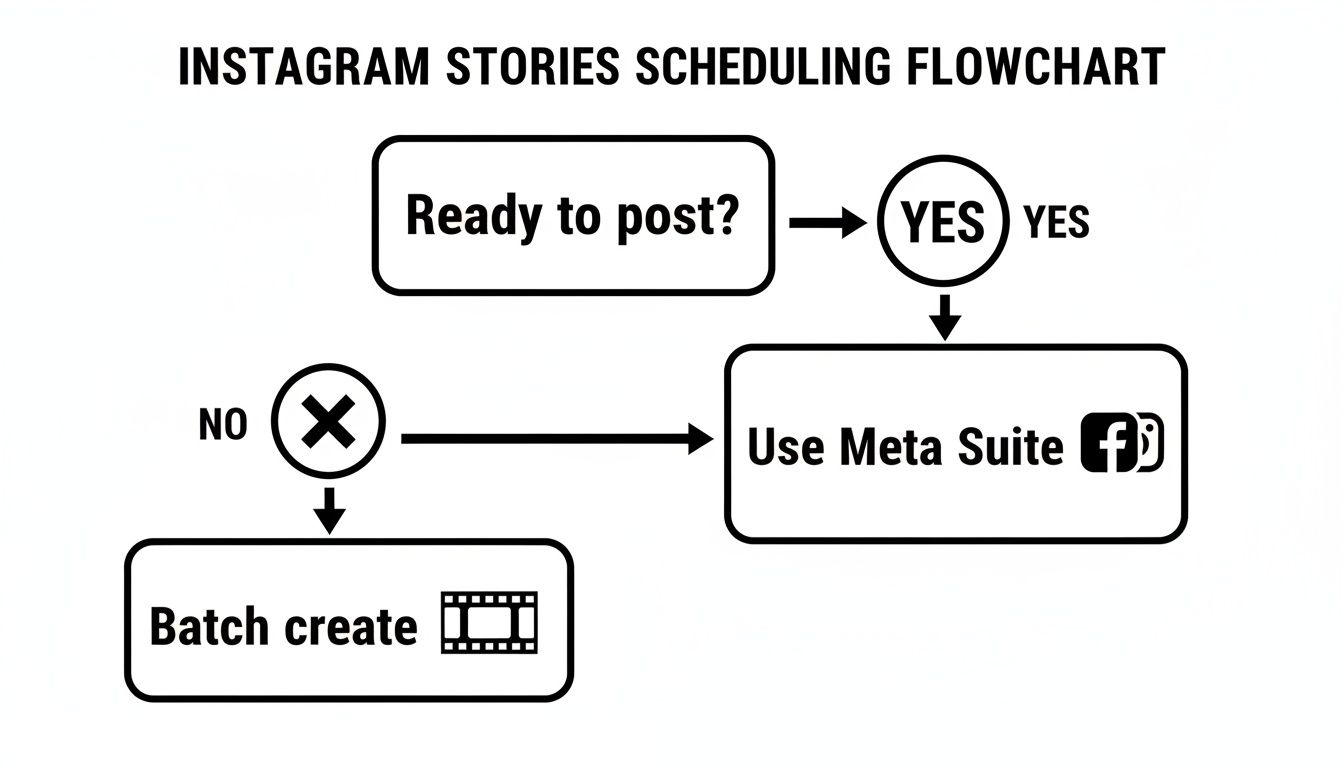
The path is pretty clear: if your content is 100% ready to go, a direct scheduler like Meta Suite works great. Otherwise, your first step should be batching your creative work.
Meta Business Suite vs. Third-Party Schedulers
Deciding between Meta's free tool and a paid subscription can be tough. It really comes down to your specific needs, team size, and how many platforms you're managing. This table breaks down the key differences to help you choose the right tool for the job.
Feature | Meta Business Suite | Third-Party Tools (e.g., Later, Buffer) |
|---|---|---|
Cost | Free | Typically subscription-based (monthly/annual fees) |
Platform Support | Instagram and Facebook only | Multiple platforms (LinkedIn, Pinterest, TikTok, etc.) |
Analytics | Basic performance metrics | Advanced, in-depth analytics and custom reporting |
Collaboration | Limited | Robust team features, approval workflows, user roles |
Content Planning | Basic calendar view | Visual planners, content libraries, hashtag suggestions |
Interactive Stickers | Limited support for scheduling | Often requires a push notification workflow |
Ease of Use | Simple and straightforward | Can have a steeper learning curve but more powerful |
Ultimately, Meta Business Suite is fantastic for getting started or for businesses focusing solely on Instagram and Facebook. But as you scale, a dedicated third-party tool often becomes necessary to manage a more complex content strategy efficiently.
Real-World Scenarios Where a Paid Tool Makes Sense
So, when should you actually make the leap from Meta's free tool? Here are a couple of common situations I've seen where a paid scheduler immediately pays for itself.
The Social Media Agency: Imagine you're managing ten different client accounts. Using Meta Business Suite would mean constantly logging in and out of different profiles—a recipe for mistakes and wasted time. A tool like Sprout Social lets you manage every client from a single dashboard, create content calendars that clients can approve directly, and pull unified analytics reports in minutes. The time saved is enormous.
The E-commerce Brand with a Team: Let's say a growing online store has a graphic designer creating visuals, a copywriter handling the text, and a manager who needs to approve everything. A platform like Buffer or Planable provides built-in approval queues. The designer uploads the Story slides, the copywriter adds notes, and the manager gets a ping to give the final green light, all before it ever gets scheduled.
The right platform isn't just about how to schedule Instagram Stories; it's about building a scalable system for your entire content operation. It reduces friction and frees up your time for more important, strategic work.
Choosing the right tool really depends on your specific workflow, team size, and long-term goals. For a deeper dive into the options out there, check out this guide on the best social media automation tools to find the perfect fit.
Your Pre-Scheduling Content Workflow

Smart scheduling is more than just picking a time and hitting 'publish.' It really begins with a solid prep process. Before you even open up your scheduling tool, having all your content organized and ready to go is the secret to avoiding those last-minute scrambles and making sure your Stories look polished.
I’ve seen it time and again: a messy, disorganized workflow is the top reason scheduled content fails or just looks plain unprofessional.
This prep work is all about getting your media lined up for batch uploading. Instead of frantically searching for a specific file or discovering a video is the wrong dimension during the upload, you’ll have everything in its right place. This system is what separates a frustrating, time-sucking chore from a smooth, efficient process.
Mastering the Technical Specifications
First things first, let's nail the technical details. Instagram is notoriously particular about its Story format. If your content doesn't meet the right specs, it can get awkwardly cropped, compressed into a pixelated mess, or just flat-out rejected. For a professional look, following these rules is non-negotiable.
Dimensions: Your canvas should always be 1080 x 1920 pixels. This is that classic, full-screen vertical look.
Aspect Ratio: This works out to a 9:16 aspect ratio. Anything filmed horizontally will end up with huge, clunky borders.
File Types: For images, JPG is your best bet. For video, stick with MP4 or MOV to ensure smooth playback and compatibility.
Video Length: A single Story slide can run for up to 60 seconds. While some schedulers will automatically chop up longer videos for you, I always recommend editing them into 60-second clips yourself. It just gives you far more control over the final product.
A crucial step here is optimizing videos specifically for Instagram Stories. This ensures your files upload quickly and play back in high quality. Huge, uncompressed files are a common culprit for failed uploads or timeouts in scheduling tools.
Building Your Content Organization System
Once the technical details are sorted, it’s time to build a system for organizing your files. Trust me, a chaotic desktop or a messy Google Drive folder is a total workflow killer. I’ve found that a simple, repeatable folder structure is a game-changer.
You could create a main folder like "IG Stories - July 2024," then add subfolders inside for each specific campaign or Story sequence. From there, a clear naming convention makes every single file instantly identifiable.
Here’s a naming convention I like to use:
[Date]_[CampaignName]_[SlideNumber]
20240715_SummerSale_01.mp420240715_SummerSale_02.jpg20240715_SummerSale_03.jpg
This kind of structure is a key piece of a bigger content strategy. If you need a hand with planning your themes and campaigns in advance, our guide on how to create a content calendar offers a fantastic framework. When your assets are organized this way, scheduling your Instagram Stories becomes incredibly fast—you can just drag and drop an entire sequence without a second thought.
Finding Your Audience's Peak Engagement Times
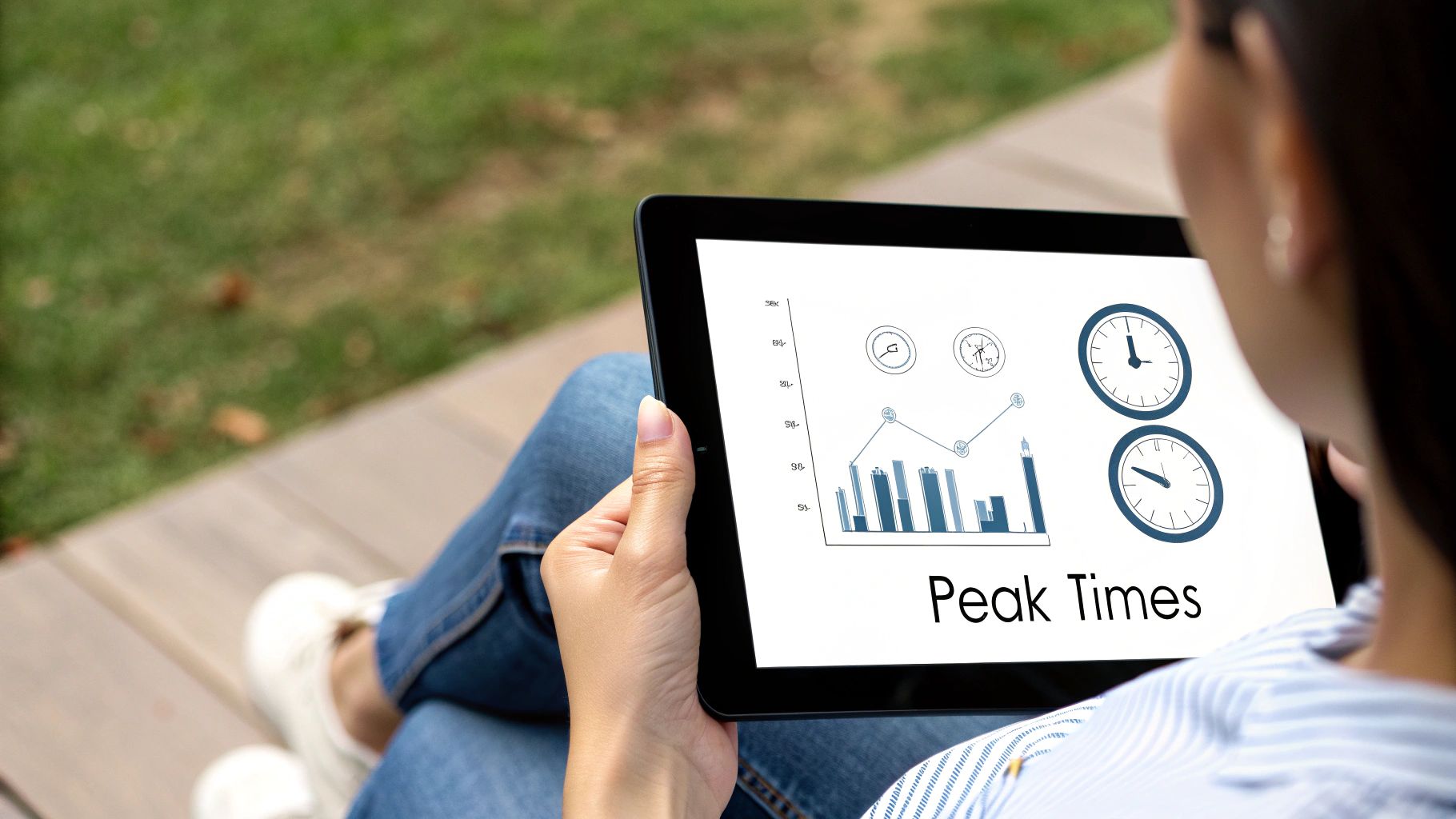
Let's be real: scheduling Instagram Stories isn't just about saving time. It's about being strategic. The whole point is to drop your content at the exact moment your audience is most likely to be scrolling through their phones.
Getting that initial burst of engagement is crucial, and that means you have to move beyond those generic "best times to post" articles. You need to find your brand's unique golden hours.
The good news is that the data you need is already waiting for you inside your own Instagram Insights. This isn't guesswork; it's about making smart decisions with the information Instagram hands you.
Tapping into Your Instagram Insights
Your account's native analytics are your best friend here. To find this data goldmine, head over to your Professional Dashboard and tap into "Account Insights."
Once you're in, look for the "Total Followers" section. This is where you'll find a breakdown of when your audience is online, both by day of the week and by the hour. It’s a game-changer.
Look for the days with the highest activity bars. Maybe your chart shows that Tuesdays and Thursdays are your strongest days, with a steady buzz of activity from 11:00 AM to 6:00 PM. That's your starting point—a broad window where your Stories have the best shot at performing well.
If you want to see how your personal data stacks up against wider platform trends, check out our guide on the best times to post on social media. It’s great for adding a little extra context to your findings.
A Framework for Testing Your Posting Times
Once you've found that general peak window, it's time to zero in. Don't just post randomly within those active hours. Instead, set up a simple testing framework to see what really connects.
Here’s a practical approach:
Week 1: Schedule your Stories to post right at the beginning of that peak window (say, 11:00 AM).
Week 2: Push your scheduled posts to the middle of the day (maybe 2:00 PM).
Week 3: Now, test the end of the window (let's try 5:00 PM).
After each week, dive back into your analytics. Compare the reach, completion rate, and replies for each time slot. You might find that a 5:00 PM post gets way more replies because your audience is finally winding down from work and has more time to engage. For example, a business coach might find that 8 AM posts get high views but low replies, while 7 PM posts get fewer views but more meaningful DMs from potential clients.
Your goal is to move from broad averages to specific, data-backed time slots that are proven to work for your audience. This iterative process of testing and measuring is what separates a good scheduling strategy from a great one.
Of course, timing is just one piece of the puzzle. The length of your Story sequence matters, too. I've found that keeping a sequence to around 5-7 slides is a sweet spot for maintaining a high completion rate. Viewers are just less likely to tap away from shorter, more focused content. To get more great tips, explore the 2025 Instagram Stories guide from Social Media Examiner.
Got Questions About Scheduling Instagram Stories?
Even with the best tools in your corner, scheduling Instagram Stories can feel a little quirky at first. It’s not quite the same as scheduling a feed post, and a few common questions always seem to pop up. Let's walk through some of the things I get asked about most often.
Can I Schedule Stories with Polls or Question Stickers?
This is easily the number one question, and unfortunately, the answer is mostly no. Because of limitations in Instagram's API, you can't schedule Stories with interactive elements like polls, quizzes, or question stickers directly through most scheduling tools, including Meta's own.
Here's the workaround I use: Schedule the main visual—the image or video—to auto-publish. Then, I set a personal reminder on my phone for the exact moment it goes live. As soon as I get the notification, I jump into the Instagram app, find the newly published Story, and add the interactive sticker manually. It’s a quick extra step that guarantees you don't miss out on that crucial engagement.
What About Videos Longer Than 60 Seconds?
Another common snag is dealing with longer videos. A single Instagram Story slide can only be 60 seconds long. While some third-party schedulers are smart enough to automatically chop a longer video into multiple 60-second segments, I've found the cuts can sometimes be a bit awkward.
My advice? It’s always better to edit your videos into perfect, bite-sized clips yourself before you upload them. For a 3-minute tutorial video, I'd edit it into three separate 60-second files. This gives you full control over where each segment begins and ends, making for a much smoother viewing experience.
What Happens If a Scheduled Post Fails?
It doesn't happen often, but every once in a while, a scheduled post will fail. It could be a brief hiccup with Instagram's API, a temporary connection issue, or a problem with the file itself. Don't panic. Your scheduling tool will almost certainly ping you with an email or a push notification to let you know.
When that happens, you usually have a few simple options:
Retry: More often than not, it was a temporary glitch. A quick click of the "retry" button is all it takes to push it through.
Reschedule: If you need a moment to figure out what went wrong, you can easily move the failed Story to a later time slot.
Check the File: This is the most common culprit. Double-check that your file is a JPG, PNG, MP4, or MOV, fits the 1080x1920 dimensions, and isn't too large. A video file that's 500MB is far more likely to fail than one compressed to 50MB.
Does Scheduling Hurt My Reach?
Let's clear this one up for good: Scheduling your Instagram Stories does not negatively impact your reach or engagement. The algorithm doesn't care if you published natively or through an official, approved scheduling tool.
In fact, it can be the opposite. Scheduling helps you post better content more consistently during your audience's peak active hours. Focusing on quality and timing is what really moves the needle on reach, and that's exactly what a good scheduling workflow helps you nail down.
Ready to stop the daily content scramble and build a powerful, automated social media strategy? NicheTrafficKit uses AI to handle everything from content creation and trend research to auto-publishing at peak times across all your platforms. Learn how to get hours back in your week at https://nichetraffickit.com.