How to Add Music to Instagram: A Guide for All Post Types
Learn how to add music to Instagram Stories, Reels, and posts. Our guide covers business account limits, troubleshooting, and tips for viral audio.
Adding music to your Instagram posts couldn't be easier. Just open the post creation screen, pick out your photo or video, and look for the 'Add Music' option before you hit publish. This simple tap opens up a massive library where you can find the perfect song clip to make your content pop.
Why Music Is Essential for Your Instagram Content
On today's Instagram, music isn't just background noise; it’s a central part of telling a story and connecting with your audience. The right track can completely transform your content—turning a simple photo into a vibe, a video clip into a mini-movie, and a Reel into the next big trend. It's one of the most powerful tools you have for setting the emotional tone.
Think about it from a practical standpoint. A travel blogger can layer an upbeat, adventurous song over a mountain landscape to immediately share a feeling of excitement. In the same way, a local coffee shop can use a chill, lo-fi beat with a shot of their latte art to create a cozy, inviting atmosphere. The music does half the work for you.
The Power of Sound in Social Media
Choosing the right audio does so much more than just entertain. It's a strategic move that can directly boost your visibility and engagement. Here's a quick look at how a soundtrack can really elevate your content:
Drives Emotional Impact: Music has a direct line to our feelings. It can make your audience feel excited, nostalgic, or calm, creating a much stronger bond with your message. For example, using a nostalgic 90s pop song for a "throwback" post instantly connects with a millennial audience.
Boosts Shareability: Posts, and especially Reels, that use trending or popular audio are far more likely to get shared. This is one of the fastest ways to expand your reach to people who don't follow you yet. If a dance challenge is going viral, joining in with the official track makes your content discoverable to everyone watching that trend.
Enhances Storytelling: A song can add context and narrative depth that visuals just can't achieve on their own. This makes your content stick in people's minds long after they've scrolled past. A time-lapse of a product being made is interesting, but set to a dramatic, building instrumental, it becomes a compelling story of craftsmanship.
Instagram’s built-in music library is now a pillar of its entire content ecosystem. With the platform now reaching 3 billion monthly active users, creators have an incredible opportunity to connect with a global audience through sound. This has also become a huge distribution channel for artists, who can get their work in front of millions of people.
The right song doesn't just complement your visuals—it completes the experience. It can be the one thing that stops someone from scrolling past your post and convinces them to engage.
At the end of the day, learning how to add music to Instagram is a non-negotiable skill for anyone serious about growing their account. A smart audio strategy can make a huge difference in your content's performance, which is a key part of learning how to increase engagement on Instagram.
Making Your Instagram Stories More Dynamic with Music
Instagram Stories are one of the best places to play around with music. It's amazing how the right track can turn a static photo or a quick video clip into something that really grabs your attention. The tool that makes all this happen is the Music Sticker.
When you've got your Story ready to go, just tap the little sticker icon (the square smiley face) at the top of your screen. From there, you'll see the "Music" option. Tapping it opens up Instagram's massive audio library, which is basically your sonic playground for finding the perfect vibe for your content.
Finding and Customizing Your Perfect Track
Once you're in the music library, you can hunt for a specific song or artist if you have something in mind. Or, you can just explore what's popular under the "For You" and "Browse" tabs. These sections are great for discovering trending audio or finding tunes that fit a particular mood.
For example, a travel blogger posting a video from a mountain hike might search for "Golden Hour" by Kacey Musgraves to capture a serene sunset. A local coffee shop, on the other hand, could search for "lo-fi beats" to give their latte art reveal a more chill, cozy feel.
After you've picked your song, you get to the fun part: making it your own. You'll see a slider at the bottom of the screen showing the song's timeline.
This slider lets you pinpoint the exact 15-second segment you want to feature in your Story. You can also totally change how the music appears visually on your screen.
Mastering the Visuals of Your Music Sticker
Don't just slap a song on your Story and call it a day. Take a moment to customize the sticker's look so it fits with your brand or the aesthetic you're going for. Instagram gives you a few cool options:
Album Art: Show the song's album cover as either a small or large sticker. This is great for shouting out an artist you love.
Minimalist Player: Go for a cleaner look with a simple bar that just displays the artist and song title. You can pinch to shrink it and tuck it away in a corner for a subtle effect.
Scrolling Lyrics: For tons of popular songs, you can have the lyrics scroll across the screen in time with the music. You can even tap the lyrics to change the font and tap the color wheel at the top to match your brand colors.
Pro Tip: Ever hear a song in someone else's Story and wish you could use it? You can! Just tap the song title at the top of their Story and hit "Save Music." Next time you go to add a track, you'll find it waiting for you in your "Saved" folder.
A great way to boost engagement is to mix your music with other interactive stickers, like polls or quizzes. For example, a bookstore could post a photo of a new fantasy novel, add an epic orchestral track, and then use a poll sticker asking, "Is this your next read? YES / NO WAY." This simple trick gets your audience directly involved. This is the kind of detail you can plan out when you create a content calendar for your social media, helping you keep your Stories consistently engaging.
With over 500 million people checking out Stories every single day, adding the right music is a huge advantage. It's so effective that 60% of Stories with a music sticker get shared, which is a massive boost for creators and artists alike. For more on this, you can check out some fascinating insights on how music drives engagement over on RevisionsMusic.com.
Using Audio to Boost Your Reels and Feed Videos
Stories are great for quick, playful moments with music, but Reels are where audio really becomes a powerhouse for growth. Let's be honest, sound is the engine of the Reels algorithm. The right track can be the difference between a video getting a few dozen views and one going absolutely viral. If you're a creator today, knowing how to add music to your Instagram Reels isn't just a nice-to-have skill—it's essential.
When you start creating a Reel, the audio tool is right there at the top of your screen. Just like with Stories, you tap the music note icon to pull up Instagram's massive library. From there, you can search for a specific song you have in mind, browse the "For You" recommendations, or—my personal favorite—see what's trending. Tapping into trending audio is a goldmine for getting more eyes on your content.
Finding and Leveraging Trending Audio
Hopping on a trend is one of the fastest ways I've seen accounts get their content in front of a completely new audience. Instagram actually makes it pretty easy to spot these opportunities if you know what to look for.
Look for the Arrow: As you're scrolling through Reels, glance down at the audio credit at the bottom of the screen. See a little upward-facing arrow next to the song title? That’s your signal—the sound is trending right now. Tap it and make a video immediately.
Save Sounds for Later: When you hear a track you love, tap the audio title. This takes you to its dedicated page where you can hit "Save Audio." It'll add it to your personal collection so you can easily find it later when inspiration strikes. I do this 5-10 times a day so I always have a bank of sounds ready.
Explore the Audio Page: That same audio page also shows you how many other Reels have been made with that sound. This not only gives you a sense of its popularity but also serves as a fantastic source of creative inspiration. See how other creators are using the sound and put your own spin on it.
Jumping on a trending sound while it’s still hot tells the algorithm your content is relevant and timely. Pair that with some killer visuals, and you dramatically increase your chances of landing on the Explore page. To give it an extra boost, I always recommend pairing trending audio with the right hashtags for Instagram Reels to cast an even wider net.
Syncing Your Clips to the Beat
Here’s a simple trick that makes your Reels look instantly more professional: sync your video clips to the beat of the music.
After you pick a track in the Reels editor, listen to it a few times. Pinpoint the distinct beats, the chorus drop, or any cool musical transitions. Then, as you add your video clips, trim each one so the cut to the next clip lands perfectly on a beat. For example, if you're making a "Get Ready With Me" video, you could cut from applying foundation to eyeshadow right as the beat drops in the song. It creates this rhythmic, almost hypnotic viewing experience that keeps people watching longer. It’s a small detail, but it signals quality to both your viewers and the algorithm.
The core process for adding music is pretty similar across different post types, as this graphic breaks down.
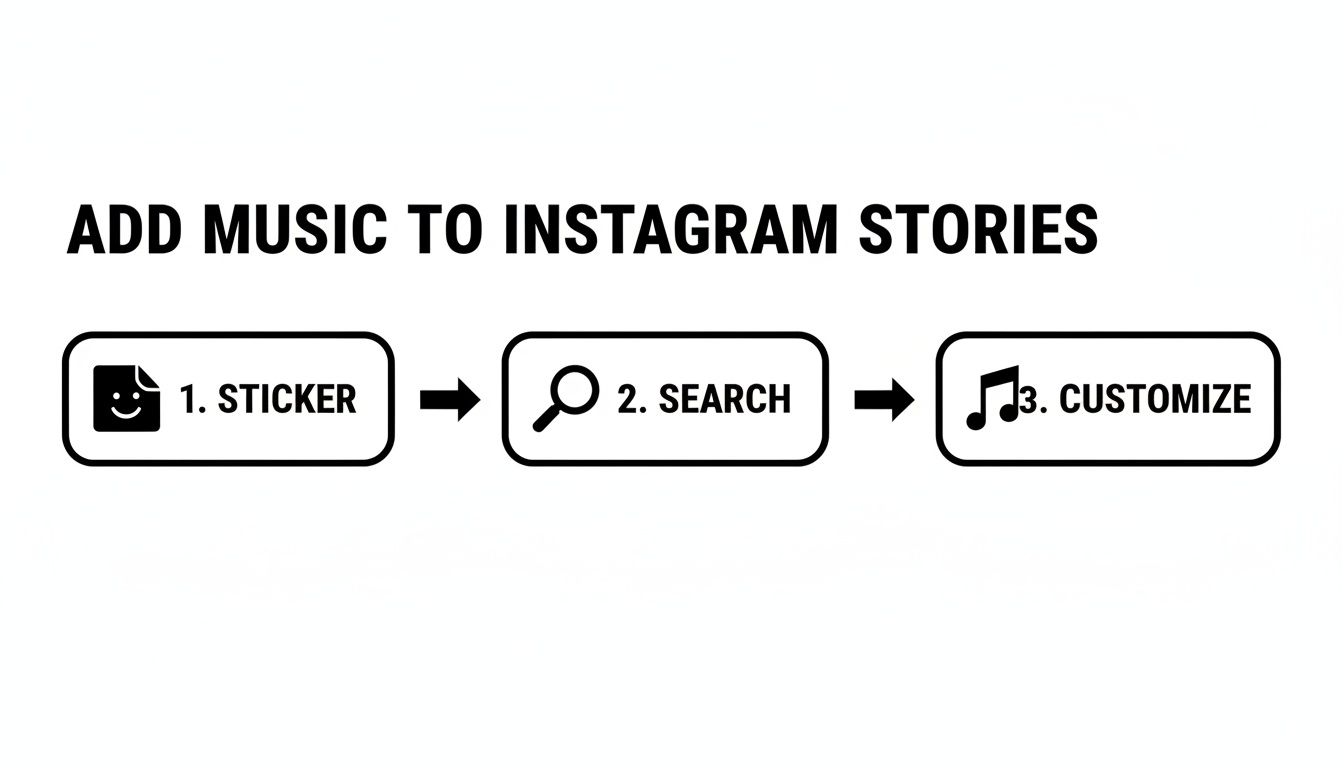
You can see the fundamental steps here: pop open the music sticker, find your track, and then tweak it to fit your content. This simple workflow is something you'll use again and again.
Adding Music to In-Feed Videos and Photos
Instagram has also given us the ability to add music to regular in-feed posts, whether it's a single photo or a video. The process is a little different from Reels. After you've picked your media and made your edits, you'll see an "Add Music" option on the final screen where you write your caption. This feature lets you add a music clip between 5 and 90 seconds long.
But it's crucial to understand the strategy here. While the feature is nice, Reels are completely dominating when it comes to discovery on the platform.
Music Features Comparison: Reels vs Feed Videos
So, where should you focus your energy? Both formats let you add music, but their capabilities and strategic uses are quite different. This table breaks down the key distinctions.
Feature | Instagram Reels | Instagram Feed Videos |
|---|---|---|
Primary Goal | Discovery, reach, and entertainment. Built for viral potential. | Enhancing content for existing followers. |
Audio Library | Full, extensive library including trending sounds, original audio, and remixes. | Licensed music library; can be more limited for business accounts. |
Length | Up to 90 seconds of audio, matching the video length. | 5 to 90 seconds of a selected music clip. |
Editing Tools | Advanced audio controls, voiceover, sound effects, and clip syncing features. | Basic track selection and clip timing. No advanced editing tools. |
Discovery Power | High. The algorithm heavily favors Reels with trending audio for the Explore page. | Low. Music primarily serves to add mood, not boost reach to new audiences. |
Best For | Hopping on trends, showcasing creativity, and reaching a broad, new audience. | Adding ambiance to a single photo post or a standard video for your community. |
The takeaway is clear: while both have their place, Reels are the clear winner for growth.
In fact, the numbers back this up. Instagram Reels have a 1.23% engagement rate, which is significantly higher than the 0.70% for photos. They also pull in 22% more interaction than regular video posts, which is exactly why the algorithm pushes them so hard.
Key Takeaway: If your goal is maximum reach and engagement, you should be prioritizing Reels with trending audio. Save the in-feed music feature for those single posts where you just want to enhance the mood for the followers you already have.
As you get comfortable making your content more dynamic with music, don't forget about accessibility. To make sure everyone can enjoy your work, it’s a good idea to understand the difference between subtitles and closed captions for your video content. Adding text is a game-changer, especially since so many people watch videos with the sound off.
The Frustrating World of Music Licensing for Business Accounts
Ever tried to jump on a trending sound for your business's Instagram Reel, only to find the song is completely missing from your music library? It’s a maddeningly common problem, and it's not a bug—it’s a feature. The culprit is commercial licensing.
Instagram sees your Business Account content as promotional, which means using popular, copyrighted music for your posts requires a commercial license. Those licenses are incredibly expensive and complicated to secure. To keep themselves (and you) out of legal hot water, Instagram limits Business Accounts to its royalty-free Sound Collection. It’s a safe library, but let’s be honest, it rarely has the bangers that are making other Reels go viral.
This leaves many brands in a tough spot. You need to use the music that’s getting all the attention, but you also have to play by the rules. Thankfully, you have a couple of solid workarounds.
The Creator Account Switch-Up
One of the most popular and effective solutions is to simply switch your profile from a Business Account to a Creator Account. These accounts are built for public figures, influencers, and artists. Since the line between personal and commercial is often blurry for creators, Instagram gives them a much wider selection of music—including all the popular stuff.
Making the change is easy, but it's a trade-off.
The upside? You’ll likely unlock the full commercial music library. This is a game-changer if you want your brand to participate in viral trends and connect with audiences on a cultural level.
The downside? You might lose access to certain business tools. The big one is the inability to connect third-party scheduling apps that rely on the official Instagram API. Your analytics dashboard will also look a bit different, as it’s geared more toward creator-centric metrics.
For a lot of small businesses, the boost from having the right music is well worth losing a few API integrations. It really comes down to what your marketing strategy prioritizes.
Switching to a Creator account can feel like you've found a secret cheat code for Instagram. Suddenly, all the music is there, and your content finally has a fighting chance to compete.
Sticking with Royalty-Free and Original Audio
If switching account types isn't in the cards for your brand, don't worry. You can still add fantastic audio to your content while staying completely compliant. Understanding the platform’s policies is key here; for a deeper dive, check out this comprehensive Instagram and music copyright guide.
Here are two safe and surprisingly effective routes to take:
Give the Sound Collection a Real Shot: It’s easy to dismiss Instagram's royalty-free library, but don’t write it off just yet. It’s packed with high-quality instrumental tracks you can filter by mood or genre. For example, a real estate agent could use an uplifting, corporate-style instrumental track for a virtual home tour to give it a polished, professional vibe without any of the legal headaches.
Create Your Own Original Audio: This is where you can get really creative and build your brand. When you upload a Reel with a custom sound—maybe it's your own voiceover, a unique jingle, or a specific sound effect—it becomes your "Original Audio." A great example is a brand creating a 10-second audio with a quick tip and a branded sound effect at the end. The magic happens when other people start using it. Every time someone uses your sound, it links back to your account, turning into free promotion and building a signature sound for your brand.
Solving Common Instagram Music Issues
It’s one of those moments that makes every creator want to throw their phone. You’ve filmed the perfect Reel, edited it to perfection, and now you’re ready to add that trending track… but the music feature just isn't working.
Technical glitches and weird restrictions can bring your creative flow to a screeching halt. The good news? Most of these problems are surprisingly easy to fix once you know where to look.
What to Do When the Music Sticker is Missing
So, you’ve opened up your Story editor, and the music sticker is nowhere in sight. Or maybe you can’t find the “Add Music” button for your Reel. Don’t panic—this is a super common issue. Before you get too frustrated, run through this quick checklist.
Update the App: This is almost always the culprit. Instagram is constantly pushing updates, and if your app is even a little out of date, features can start to disappear. Hop over to your app store and make sure you’re running the latest version. It's a simple step, but it solves the problem 90% of the time.
Check Your Account Type: Remember how we talked about Business Accounts? They're stuck with a limited, royalty-free library because of licensing laws. If you absolutely need access to popular, chart-topping music, your best bet is switching over to a Creator Account.
Think About Your Location: Music rights are a tangled web of international agreements. A song available in the US might be blocked in the UK. If you suspect this is the problem, a VPN can sometimes help you bypass these geo-restrictions, but it’s not a foolproof solution.
Clear the Cache: Apps collect a lot of temporary data, and sometimes that data gets corrupted, causing all sorts of bizarre bugs. On an iPhone, the easiest way is to offload the app (Settings > General > iPhone Storage > Instagram > Offload App) and then reinstall it. On Android, you can go to Settings > Apps > Instagram > Storage and tap "Clear Cache."
Pro Tip: Keep in mind that Instagram's creative tools are built for the mobile experience. If you’re trying to add music from your desktop, you’ll find the options are either non-existent or severely limited. Stick to the app for the full toolkit.
Why Did My Saved Audio Vanish?
It’s a real letdown when you go to your saved audio library and the perfect sound you found last week is just… gone.
This usually means the audio was removed from the platform. It could be that the original creator deleted their Reel, or Instagram took it down for a copyright violation. Either way, once it's gone, there’s no getting it back.
This is a great reason to jump on trending sounds quickly. If a particular piece of audio is absolutely vital to your content strategy, the safest move is to create your own original audio. That way, you have full control and it will never disappear. Knowing these little tricks is the key to mastering how to add music to Instagram and keeping the technical headaches at bay.
Answering Your Top Questions About Instagram Music
Once you get the hang of adding music to your Instagram content, a few specific questions always seem to come up. Think of this as your go-to cheat sheet for those little details that can make a big difference, from using your own tracks to figuring out why a song suddenly vanished.
Let's clear up some of the most common points of confusion.
Can I Pull My Own Music from Spotify or Apple Music?
This is probably the most-asked question, and the short answer is no—at least not directly. Due to copyright and licensing, you can't just grab any song from a streaming service and set it as the background for your entire Reel or Story.
But you're not completely out of luck. For Stories, you can hit the "Share" button inside the Spotify or Apple Music app. This will pop a sticker into your Story that shows the album art and plays a 15-second preview. It's a neat way to share what you're listening to, and anyone who taps it gets sent right to the song on the streaming platform.
If you're an artist and want your own music in a Reel, the best way is to upload it as an "Original Audio." Just create a Reel using the track from your phone, and it will become a new, shareable sound on the platform.
Why Did Instagram Mute or Remove the Music from My Video?
That "Your video has been muted" notification is incredibly frustrating. This almost always happens when Instagram's system flags copyrighted music that isn't licensed for the way you used it.
It’s a common issue for longer videos in the main feed or for Business Accounts that have used a commercial pop song instead of a track from Instagram's approved library for businesses.
The best way to avoid this headache is to stick to the music available in Instagram’s own library. If you need something different, use a trusted royalty-free music site or make sure you have direct permission from the artist or label before you post.
How Do I Find Trending Songs for My Reels?
Hopping on a trending sound is one of the fastest ways to get more eyes on your Reels. Instagram leaves a few clues to help you spot them.
The Upward Arrow is Your Best Friend: As you’re scrolling, look at the audio credit at the bottom of a Reel. See a tiny, upward-pointing arrow next to the song name? That's Instagram's official sign that the audio is trending.
Explore the Audio Library: When you start creating a Reel and tap to add music, the "For You" tab is usually filled with songs that are currently popular or that the algorithm thinks you'll like.
Get in the Habit of Saving: This is a pro move. When you hear a sound pop up over and over again, don't just scroll past. Tap the audio title at the bottom and hit "Save Audio." It'll be waiting for you in your saved collection when inspiration strikes.
Can You Really Add Music to a Regular Photo Post Now?
Yes! This is a newer feature that’s a bit of a game-changer for static feed posts. You can now add a soundtrack to a single photo you share on your grid.
When you get to the final screen before publishing (where you write your caption), you should see an "Add Music" option. Tapping it pulls up the same music library you're used to. You can pick a song and select a clip that’s anywhere from 5 to 90 seconds long. Now, when people scroll past your photo, the music will play automatically. If you don't have this option yet, head to the app store and make sure your Instagram is updated.
Ready to stop guessing and start growing? NicheTrafficKit uses AI to research viral trends, generate platform-specific posts, and publish your content at the perfect time to maximize reach. Cut your social media workload from hours to minutes and see real results. Explore how NicheTrafficKit can automate your growth.